ThinkNode G4 Wi-Fi HaLow Gateway Support Wi-Fi/Wi-Fi HaLow/Ethernet Connections | Supports AP/STA/Mesh, etc-915 MHz
Model: LGW14904D2

Hardware Overview

LED Indicators:
- PWR LED (Red): Power status. Steady on when powered.
- HaLow LED (Blue): Wi-Fi HaLow connection status. Steady on when connected to other HaLow devices.
- Link LED (Green): Configuration status. Blinks during setup; remains steady on after the gateway is set to AP or Mesh Gate mode and obtains an IP address.
Usage Guide
The ThinkNode G4 supports AP, STA, and Mesh networking modes.
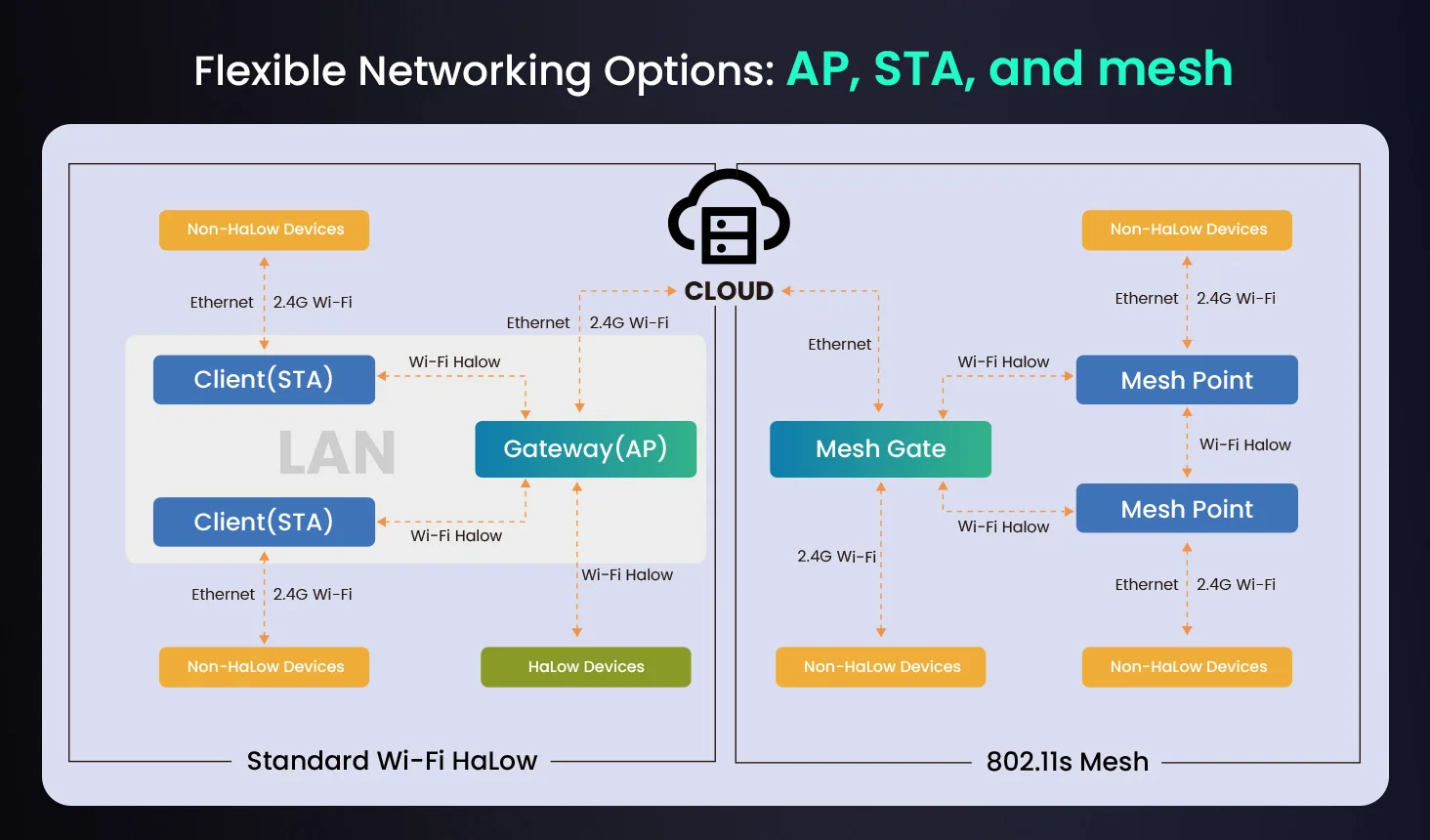
Configuration Preparations
Before configuring the gateway modes, please follow these steps:
-
Connect the USB-C power cable. The red PWR LED will turn on. Wait 2~3 minutes until the green Link LED is flashing or steady.
-
Press and hold the CFG button for 3 seconds to enter configuration mode.
Note: Press and hold the CFG button for 10 seconds to restore factory settings.
- Open the Wi-Fi list on your phone/computer and connect to the network named ThinkNode-G4_XXXX.
Default Password: elecrow.com
- Open a web browser and enter
10.42.0.1to access the gateway configuration page. Enter a password to log in, or click "Log in" directly if you do not wish to set a password.

5,Set the Country and Hostname, then enter the password again (or click "Apply" directly if no password is desired).

Note: If you lose connection to
ThinkNode-G4_XXXXduring setup, please reconnect to the Wi-Fi network (automatic connection is recommended).
Mode Configuration
Wi-Fi HaLow Gateway (AP) Mode
- Ensure "Configuration Preparations" are completed.
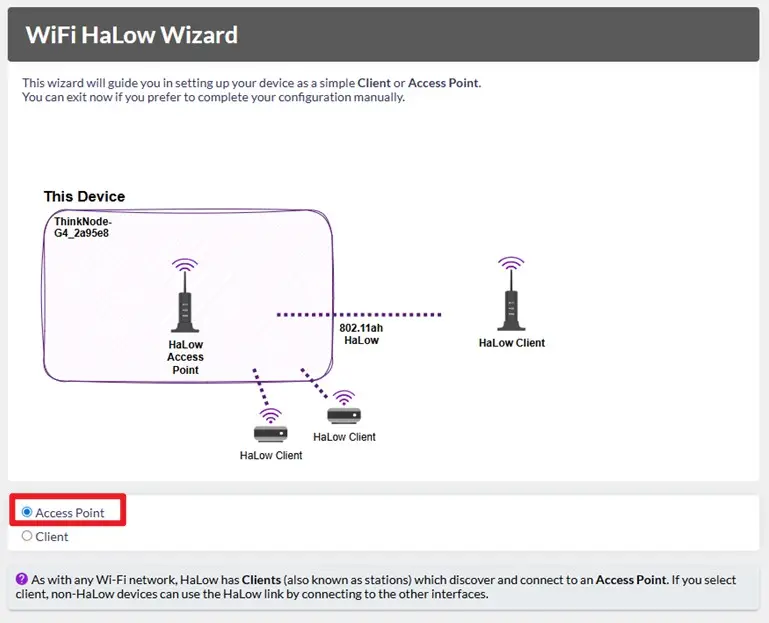
- Select "Standard Wi‑Fi HaLow".

- Select "Access Point", then click "Next".
-
Configure HaLow Network - AP parameters:
-
SSID: The name for the Wi-Fi HaLow AP hotspot.
-
Password: The password for the hotspot (Default:
elecrow.com). -
Bandwidth: Higher bandwidth increases data rate but reduces transmission distance and increases power consumption.
-
Channel: Specific frequencies used for the bandwidth. Change channels to reduce interference from nearby Wi-Fi HaLow devices.

-
Select the Upstream Network connection type. This determines how the AP connects to the network:
-
None: The device has a static IP and runs a DHCP server on all interfaces. HaLow and non-HaLow networks are isolated.
- Ethernet Bridge: The device and connected HaLow clients obtain IP addresses from the upstream network.
- Ethernet Router: Connected HaLow clients get IP addresses from this device's DHCP server; traffic is forwarded via NAT.
- Wi-Fi (2.4 GHz): Connected HaLow clients get IP addresses from this device's DHCP server; traffic is forwarded via NAT.
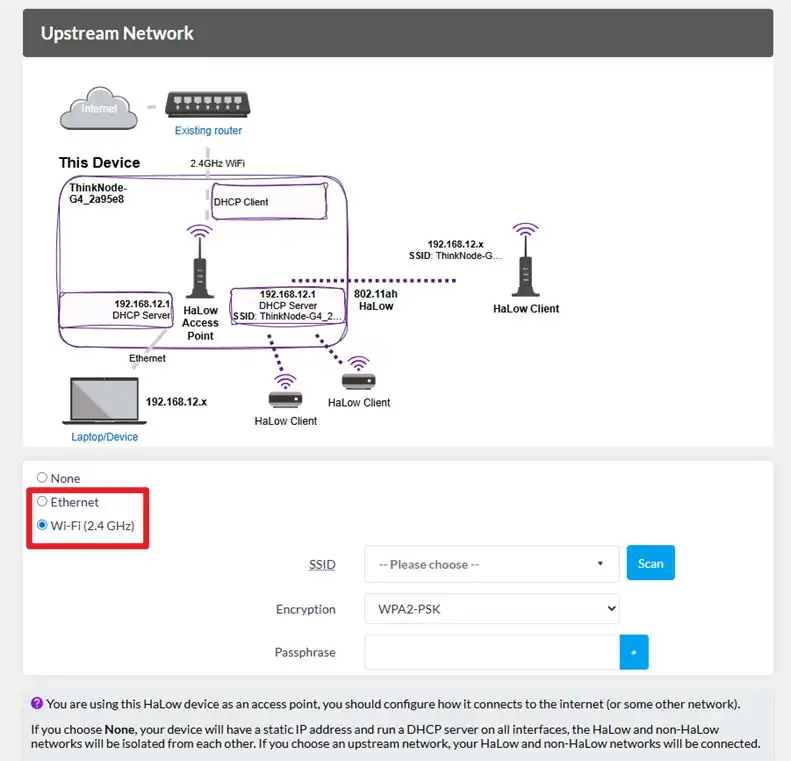
Note: If selecting "Wi-Fi (2.4 GHz)", you can click "Scan" or manually enter the Wi-Fi name and password.If you're using an Ethernet cable, no configuration is required.

- Enable the "Enable Access Point" function. This provides a standard 2.4 GHz Wi-Fi hotspot in addition to the HaLow hotspot. Set the 2.4 GHz SSID and password (ensure they differ from the HaLow settings in Step 4).

- Note the AP Gateway's IP Address(eg.192.168.12.1), then click "Apply" to finish.

- Connect your client devices to the 2.4 GHz Wi-Fi hotspot set in Step 6.

- Enter the IP Address (from Step 7) in a browser to access the management UI.
- You can view various parameter information in the AP Gateway's admin interface;

-
Click “Quick Config” to quickly modify the configuration you just made;

-
Click "Wizards" **to reconfigure the **"Access Point" or "Client” in Standard Wi‑Fi HaLow mod.

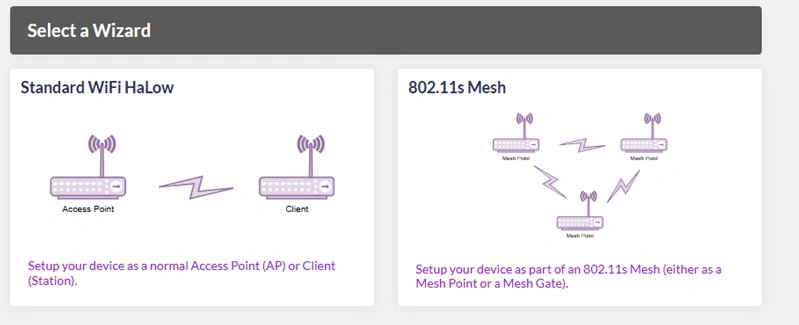
Note: If your initial mode is "Standard Wi‑Fi HaLow mode", you cannot directly switch to "802.11s Mesh mode". You must complete the "Gateway Configuration Pre-preparation" steps again before selecting "802.11s Mesh mode"
Wi-Fi HaLow Client (STA) Mode
- Complete the**"Gateway configuration pre-preparation"**;
- Select "Standard Wi‑Fi HaLow".
- Select "Client", then click "Next".
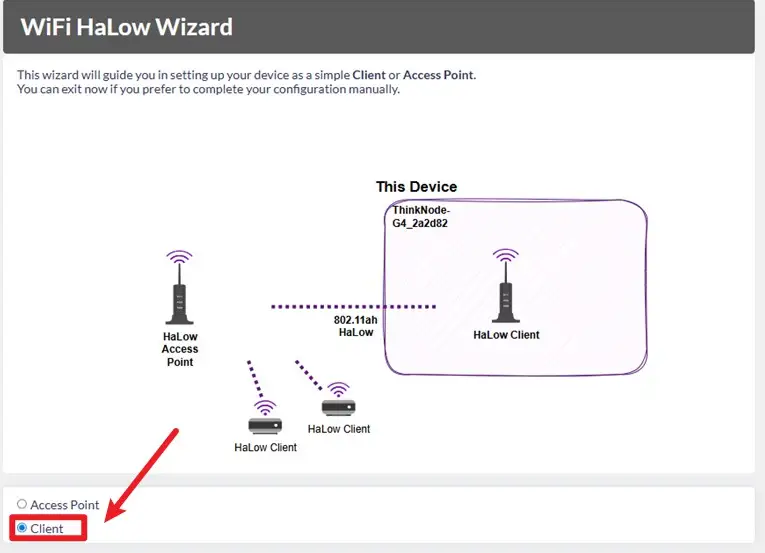
- Click "Manual Credentials". You can click "Scan" or enter the AP hotspot name and password you wish to connect to.(see step 4 in the **“Wi-Fi HaLow Gateway (AP) Mode” **for reference)

-
Select Traffic Mode,Parameter descriptions are as follows:
-
None: The device has a static IP and runs a DHCP server on non-HaLow interfaces. Non-HaLow and HaLow networks are isolated.
- Bridge: Non-HaLow devices obtain IP addresses from the HaLow link.
- Extender: Non-HaLow devices obtain IP addresses from this device's DHCP server; traffic is forwarded via NAT.

- Turn on**"Enable Access Point"**.This device also provides a standard 2.4 GHz WiFi hotspot. Set your 2.4 GHz WiFi hotspot name and password,and it is not the same as the AP gateway's 2.4 GHz WiFi hotspot name;

- Click "Apply" to complete the STA gateway configuration;

- Open the AP gateway's admin interface and click "Connected Devices" **to see the STA gateway's **“IP address”


- Enter the STA Gateway's IP Address in a browser.

- Click "QuickConfig" to quickly modify the configuration you just made;
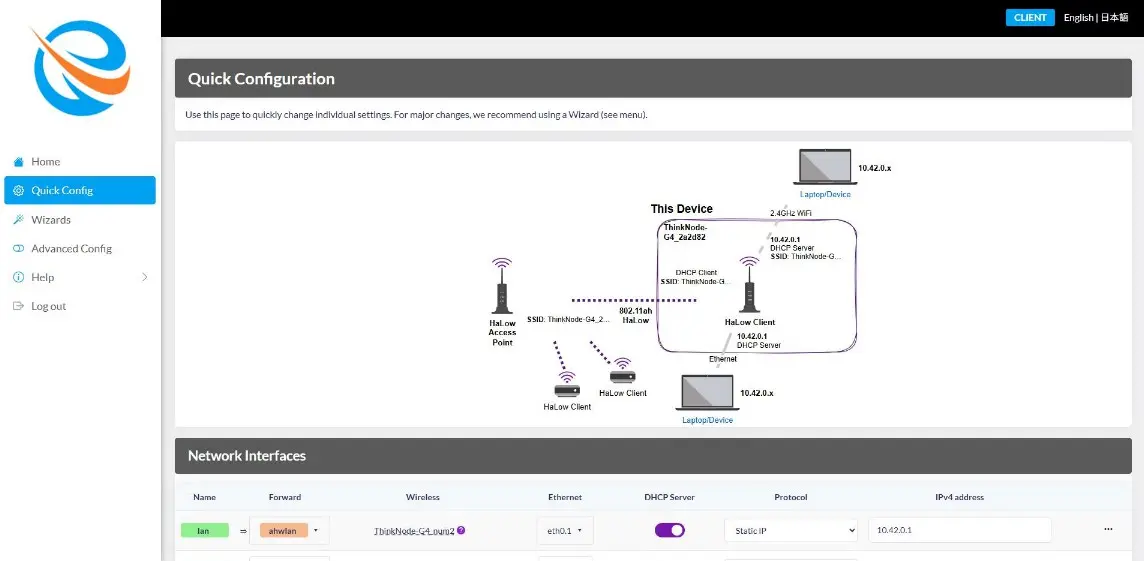
- Click "Wizards" to reconfigure the “AccessPoint” or “Client” in "Standard Wi‑Fi HaLow mode".
Note: If your initial mode is "Standard WiFi HaLow mode", you can not directly switch to "802.11s Mesh mode".You must complete the "Gateway Configuration Pre-preparation" steps again before selecting "802.11s Mesh mode".
Wi-Fi HaLow Mesh Gate Mode
- Complete the "Gateway configuration pre-preparation";
- Select "802.11s Mesh".

- Select "Mesh Gate", then click "Next".

-
Configure Mesh Network parameters:
-
Mesh ID: The name of the Mesh network gateway.
-
Password: The Mesh gateway password (Default:
elecrow.com). -
Bandwidth: Higher bandwidth = faster speed/shorter range.
-
Channel: Change to reduce interference.

- Select Uplink Network (Options are the same as in AP Mode: None, Ethernet Bridge, Ethernet Router, Wi-Fi 2.4 GHz).Choose an “Upstream Network” connection type.This determines how
the access point(AP) connects to the network. Parameter descriptions:
None:your device will have a static IP address and run a DHCP server on all interfaces,the HaLow and non-HaLow network will be isolated from each other.
Ethernet-Bridge: your device and halow connected devices obtain IP addresses from your current upstream network.
Ethernet-Router: the halow connected devices obtain IP addresses from DHCP server on this device, and this device uses NAT to forward IP traffic.
Wi-Fi(2.4 GHz): the halow connected devices obtain IP addresses from the DHCP server on this device, and this device uses NAT to forward IP traffic.
Note: If you choose the "Wi-Fi(2.4 GHz)" mode, you can click "Scan" or enter the available Wi-Fi name and password in the fields;
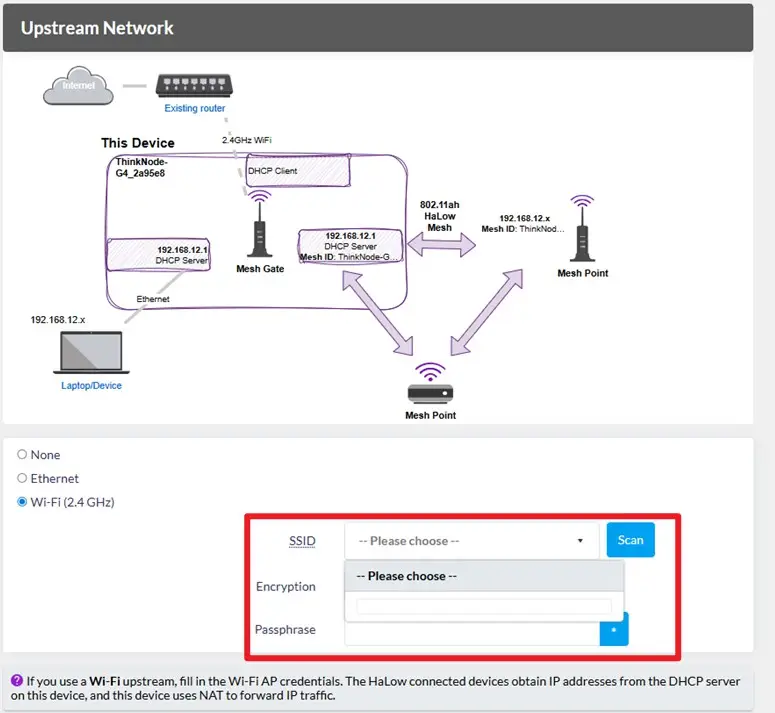
- Turn on "Enable Access Point". This device also provides a standard 2.4 GHz Wi-Fi hotspot. Set your 2.4 GHz Wi-Fi hotspot name and password,and make sure it is not the same as the Mesh gateway name from step4;

- Remember your Mesh Gateway “IP address”, then click "Apply" to complete the configuration;

- Connect your devices to the 2.4 GHz Wi-Fi hotspot.
- Enter the IP Address in a browser to access the management UI.
- You can view various parameter information in the MeshGate’s admin interface;

-
Click "Quick Config" to quickly modify the configuration you just made;

-
Click "Wizards" to reconfigure the Mesh Gate or Mesh Point in 802.11s Mesh mode.
Note: If your initial mode is "802.11s Mesh mode" , you can not directly switch to "Standard WiFi HaLow mode" .You must complete the "Gateway Configuration Pre-preparation" steps again before selecting "Standard WiFi HaLow mode".
Wi-Fi HaLow Mesh Point Mode
-
Ensure "Configuration Preparations" are completed.
-
Select "802.11s Mesh".
-
Select "Mesh Point", then click "Next".

-
Enter the Mesh Gate name and password you wish to connect to.
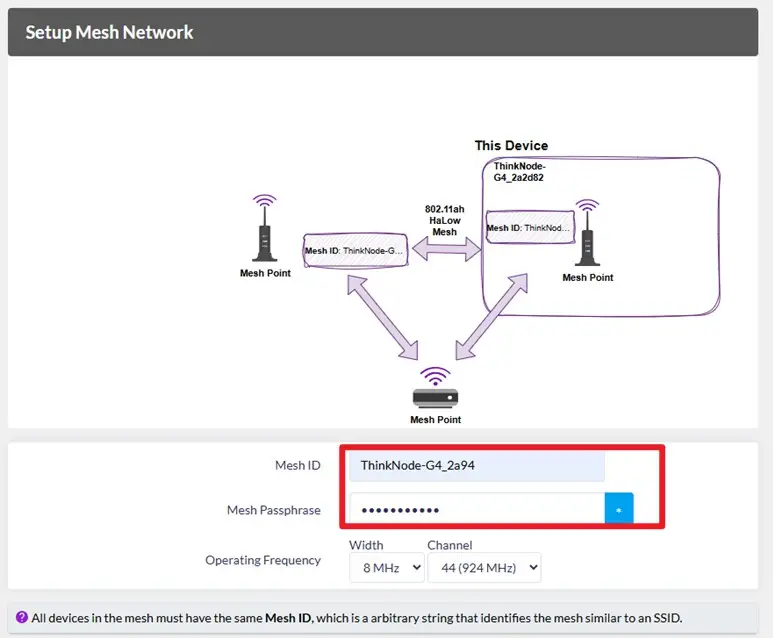
-
Select Traffic Mode .Parameter descriptions are as follows:
None: This device will have a static IP address and run a DHCP server on non-HaLow interface,the HaLow and non-HaLow network are isolated.
Bridge: non-halow devices obtain IP from your halow link.
Extender: non-halow devices obtain IP from the DHCP server on this device and this device uses NAT to forward IP traffic.

- Turn on "Enable Access Point".This device also provides a standard2.4 GHz Wi-Fi hotspot. Set your 2.4 GHz Wi-Fi hotspot name and password,and make sure it is not the same as the Mesh Gate’s 2.4 GHz hotspot name;

- Click "Apply" to complete the Mesh Point gateway configuration;

- Open the Mesh Gate’s admin interface and click "Connected Devices" to see the Mesh Point’s**“ IP address”**;


- In your browser,enter the Mesh Point’s “IP address”;

- Click "Quick Config" to quickly modify the configuration you just made;

- Click "Wizards" to reconfigure the Mesh Gate or Mesh Point in 802.11s Mesh mode.
Note: If your initial mode is "802.11s Mesh mode" , you can not directly switch to "Standard WiFi HaLow mode" .You must complete the "Gateway Configuration Pre-preparation" steps again before selecting "Standard WiFi HaLow mode".
Use Cases for the Wi-Fi HaLow Module with 2MP Camera:
First, configure the ThinkNode G4 to AP mode. Note: For the Wi-Fi HaLow mode, you must connect to HaLow Network - AP, not a standard 2.4 GHz Wi-Fi network.
ESP32 Wi‑Fi HaLow module configuration
- Open a serial terminal tool (any serial tool works), select the corresponding port, and set the baud rate to 115200.
- Send: AT+CWJAP=“AP-SSID”, ‘Passphrase’; — where AP-SSID and Passphrase are the username and password for the Wi-Fi HaLow gateway, respectively. Please refer to the AP mode settings in the ThinkNode G4 Gateway Configuration manual. For example: AT+CWJAP=“ThinkNode-G4_2a94”, “elecrow.com”;

- After sending, you will see the ESP32 Wi‑Fi HaLow Module attempt to connect to the Wi‑Fi HaLow gateway. When the connection is successful, you will receive the reply: “WLAN STA connected”.Then there is an IP address (for example: 192.168.12.126). Make a note of this IP address.

- Open a browser (The computer or mobile phone used here must be on the same local area network as the G4.)and enter the ESP32 Wi‑Fi HaLow Module “IP address“to use the ESP32 Wi‑Fi HaLow Module.

How to buy
Please visit this page to purchase ThinkNode G4 Wi-Fi HaLow Gateway.
Support
If you encounter any issues while using the service, you can contact us via the social media links in the bottom-right corner of elecrow or send an email to techsupport@elecrow.com for technical support.